Guide to Creating Concept Images with Multiple Characters
How to intentionally control variables to produce results with multiple characters through a conversation with Quel Assistant
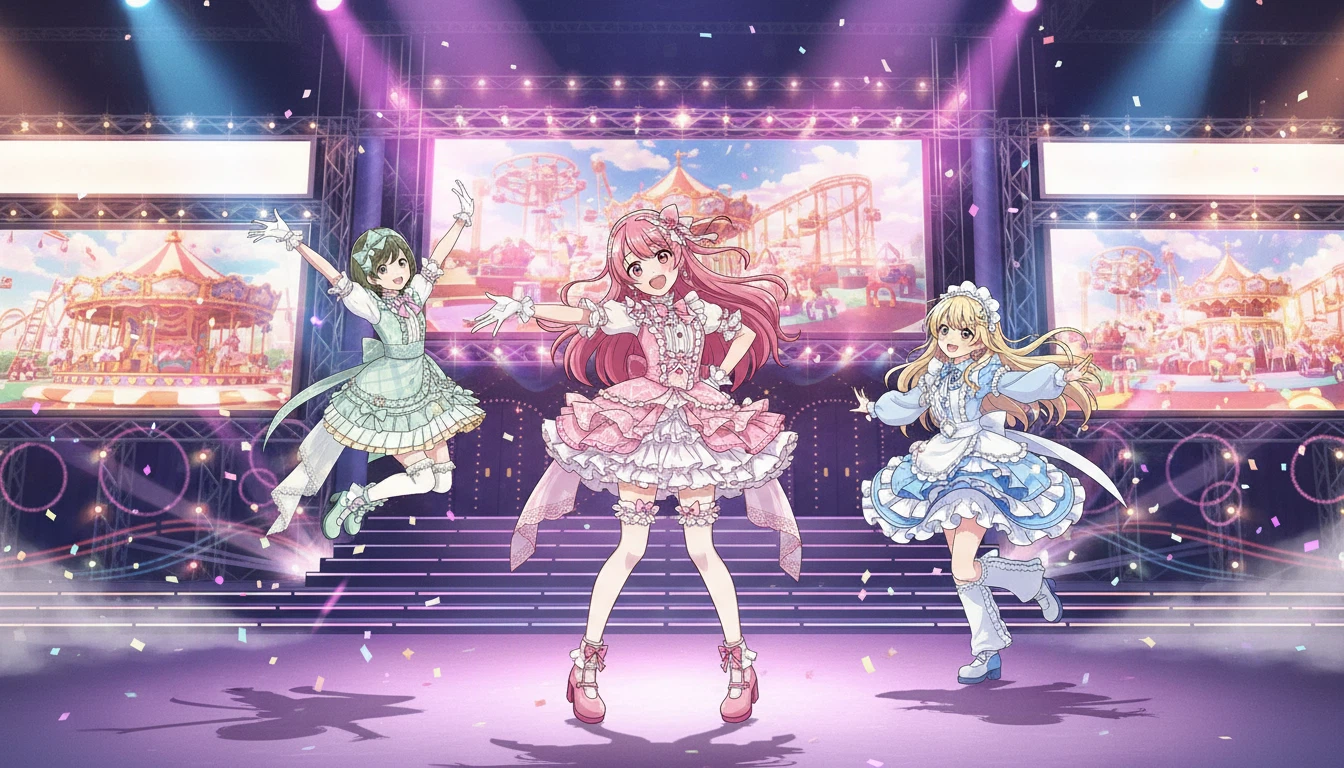
When multiple character images are input into assets in Quel Suite, the final render result can be generated in one of the following two ways.
When multiple characters appear as independent individuals
When the features of multiple characters are combined and reflected in one character
Which method will generate the result is not automatically predicted or guaranteed.
Therefore, if you want to clearly feature multiple characters, it is necessary to intentionally control variables through a conversation with Quel Assistant.
Recommended Process for Creating Concept Images with Multiple Characters
1. Reference Input Stage
You need to input each character image into the asset node according to the number of characters you want to feature.
If you want to designate a reference character for the featured characters, it is also good to input the reference character into the global node.
2. Prompt Creation through Quel Assistant
Rather than proceeding with rendering immediately after asset input, it is important to create a prompt that specifies scene conditions through a conversation with Quel Assistant.
In this process, it is recommended to specify the following elements.
The total number of characters appearing
Composition on the screen (e.g., left, center, right, foreground, background)
The situation, atmosphere, and relationships between characters in the scene
It is especially good to repeatedly emphasize the number of characters.
For example, if three characters must appear, the following method is effective in the prompt.
Repeatedly specify the expression “three characters”
Individually define the position and role of each character
3. When Using Characters with Different Art Styles
If the input characters have different art styles, you must clearly specify one of the following.
Designate a reference character and request to unify the entire style based on that character
Request to unify the entire style in a specific animation or illustration style
If this is not specified, different art styles may be mixed and reflected in the result.
4. Basic Principles for Poses
If there is no separate definition for poses, the poses of the input character images are likely to be reflected as they are.
If you want to modify poses, it is necessary to define them in the prompt.
Directly request a specific pose in the prompt
Conceptualize poses together through a conversation with Quel Assistant
6. Development Method Using Global Background Assets
If a background image is input into Global, that image functions as a basic reference.
If you want a more advanced result than the reference, you can additionally request the following elements through a conversation with Quel Assistant.
Overall mood
Screen composition
Lighting, effects, atmosphere production
Through this, you can create a highly developed scene image based on the reference rather than a simple background composite.
Example
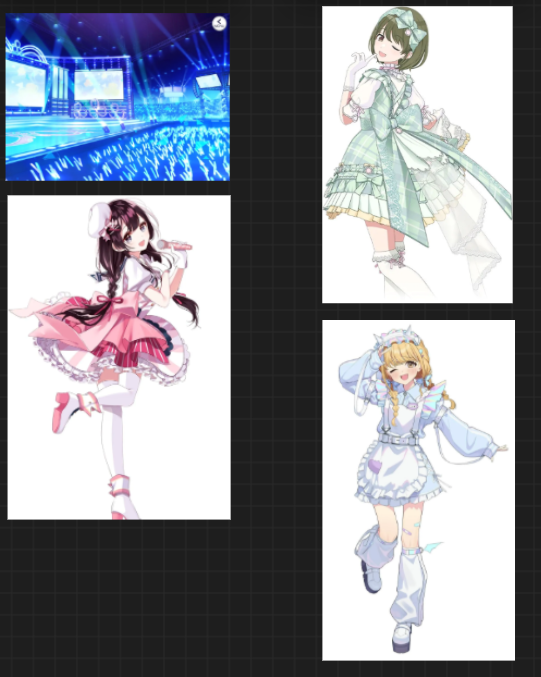
The images below are reference images used in the workflow for creating concept images with multiple characters.
Case 1
When an image is generated with a simplified prompt
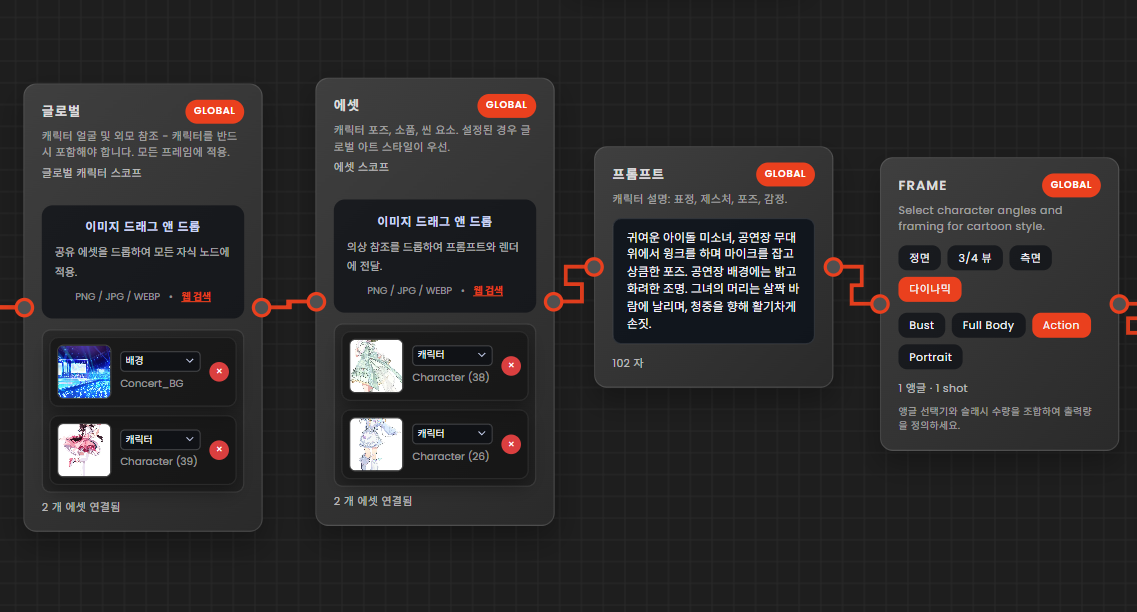
Prompt: Cute idol girl, pink outfit. Winking on stage holding a microphone with a fresh pose. Bright and colorful lighting in the concert hall background. Her hair slightly blowing in the wind, energetically gesturing towards the audience.
Rendering Result
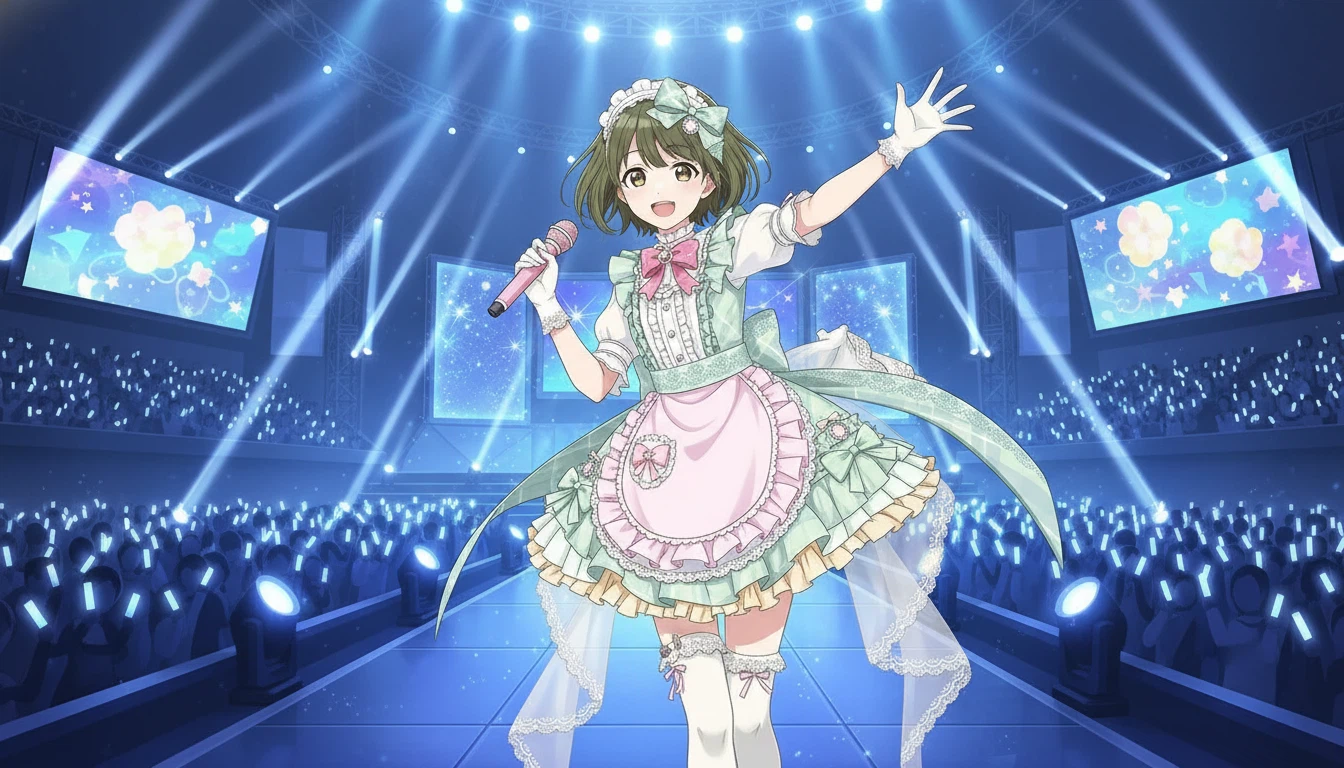
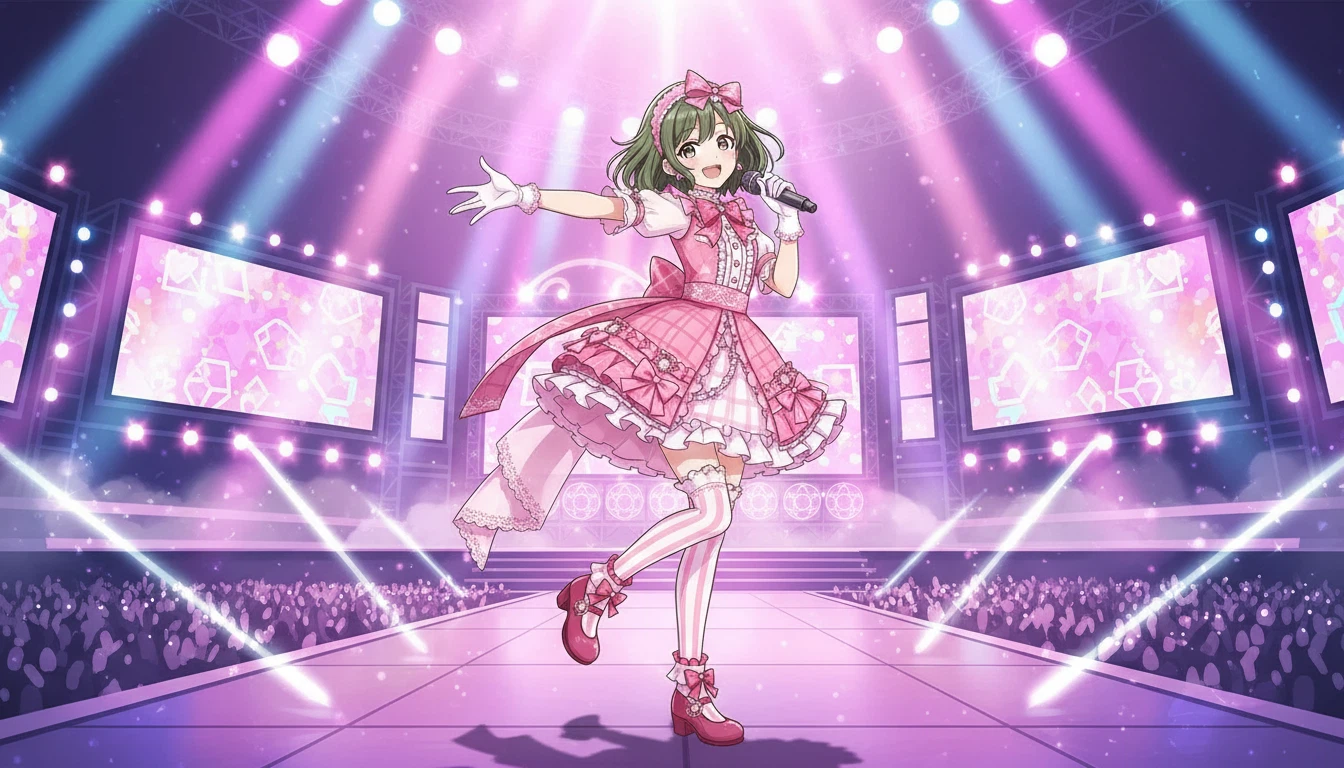
A single character is generated that comprehensively reflects the features of the images input as character references.
Although it is already an excellent result as a concept illustration, you can expect a richer result if you provide more precise direction in the prompt.
Case 2
When an image is generated with a prompt created through a conversation with Quel Assistant
Step 1_ Start a conversation with Quel Assistant
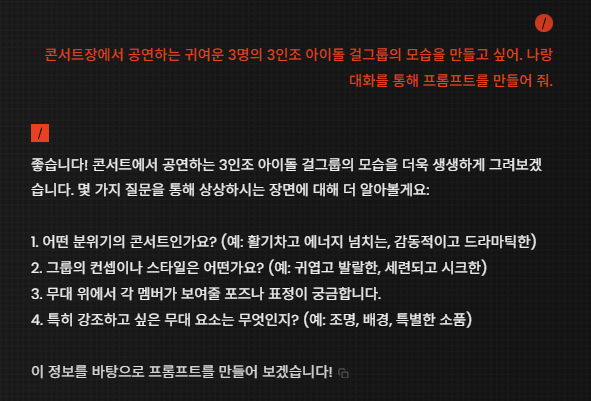
By simply suggesting the image you want to create, Quel Assistant can suggest the necessary elements for the image and proceed with the conversation.
Step 2_ Develop the composition and mood details of the image through a conversation with Quel Assistant
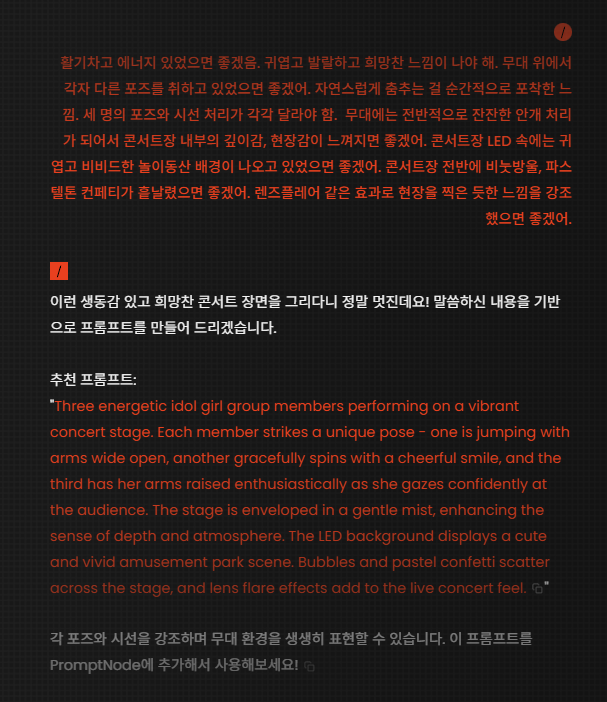
We created a prompt by responding to the elements suggested by Quel Assistant.
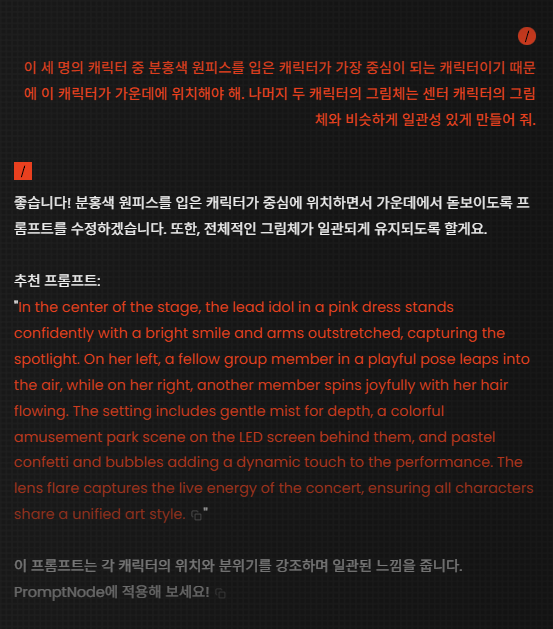
We go through the process of emphasizing the prompt for variables we want to strongly control.
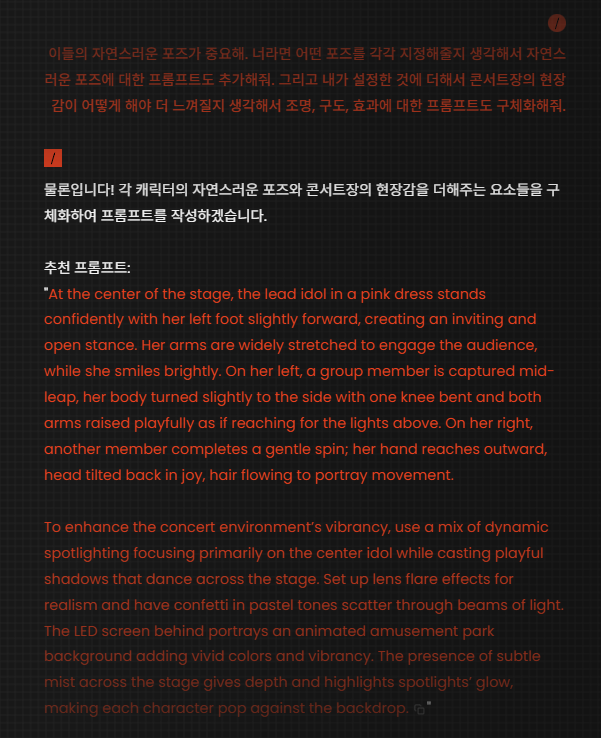
Also, when lacking ideas, we request more creative and professional prompts from Quel Assistant.
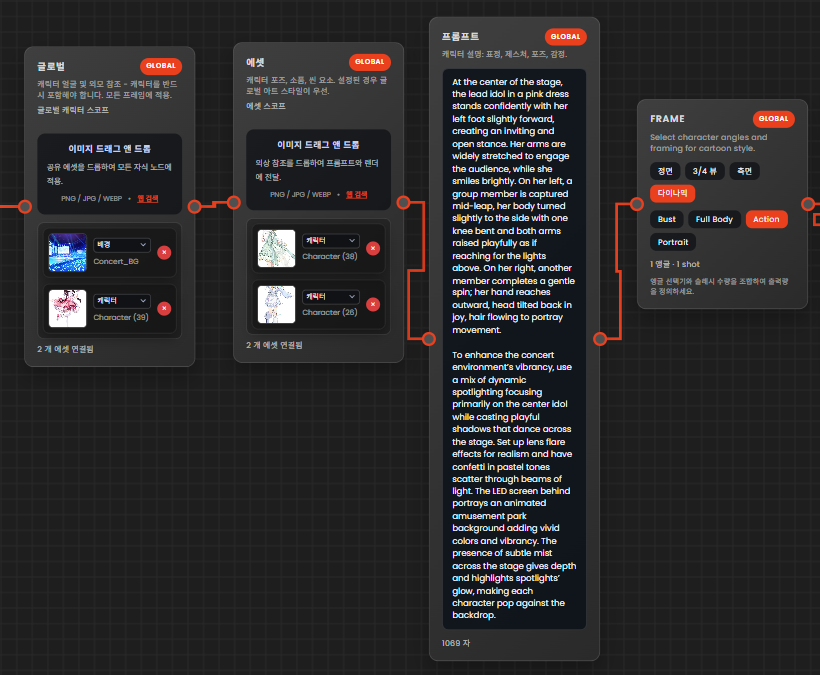
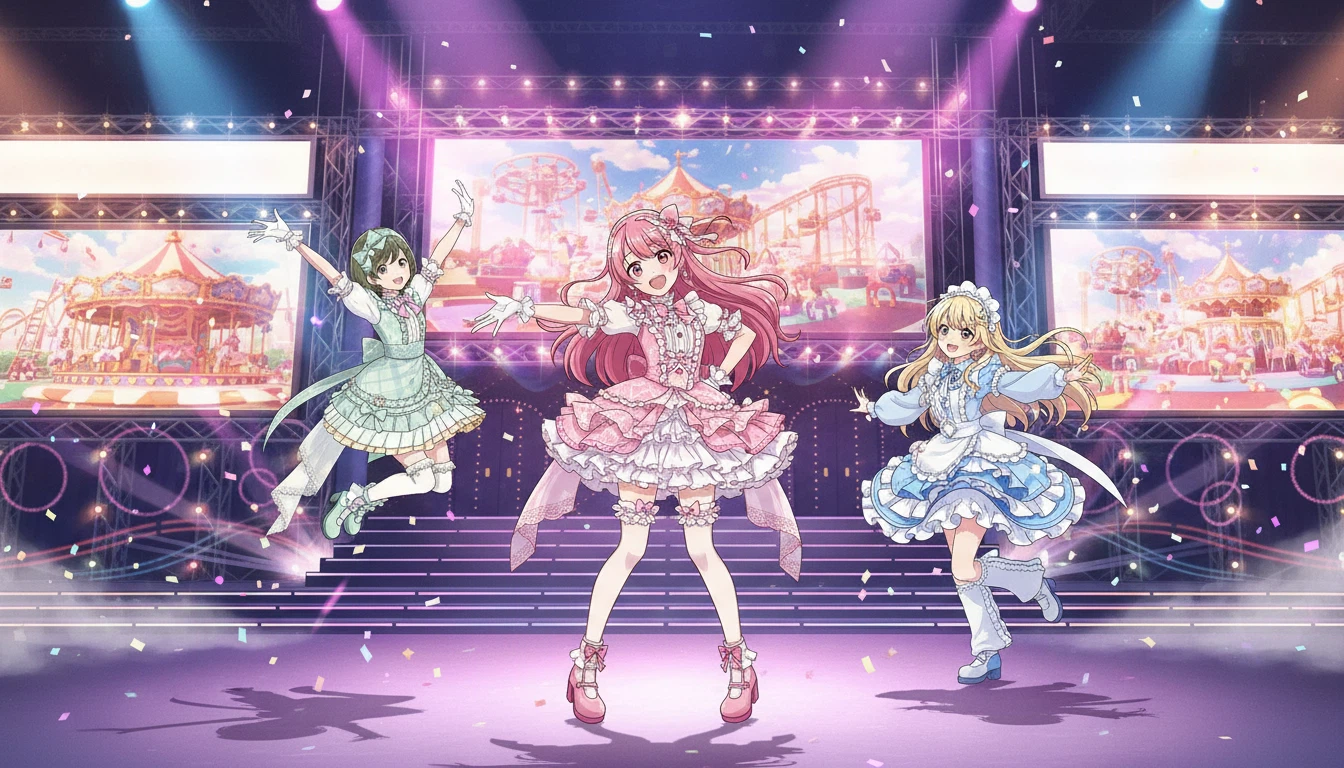
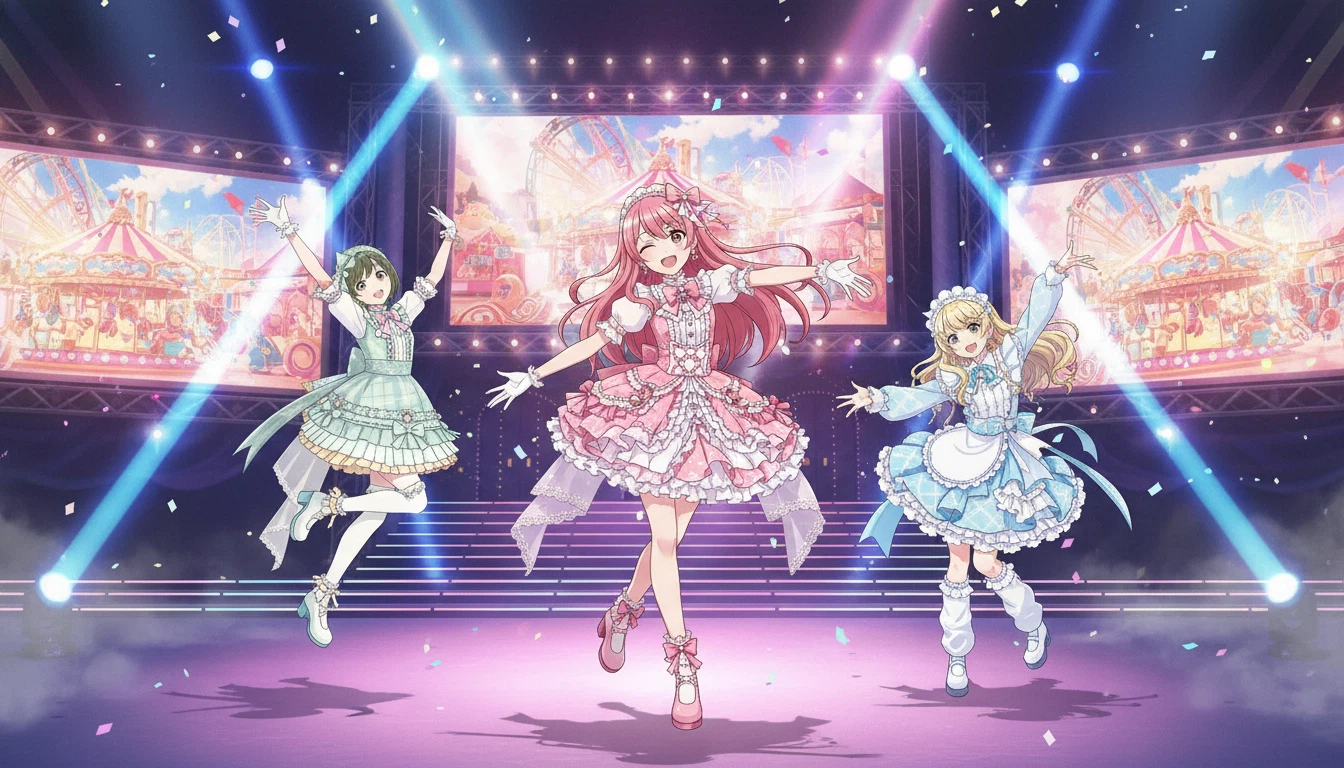
Rendering Result