Guide to Creating Studio Fitting Shots for Repeat Production with One Setup
Introducing a method to easily generate detailed clothing images as if taken in a real studio using QuelSuite, without separate physical studio setups or detailed shooting.
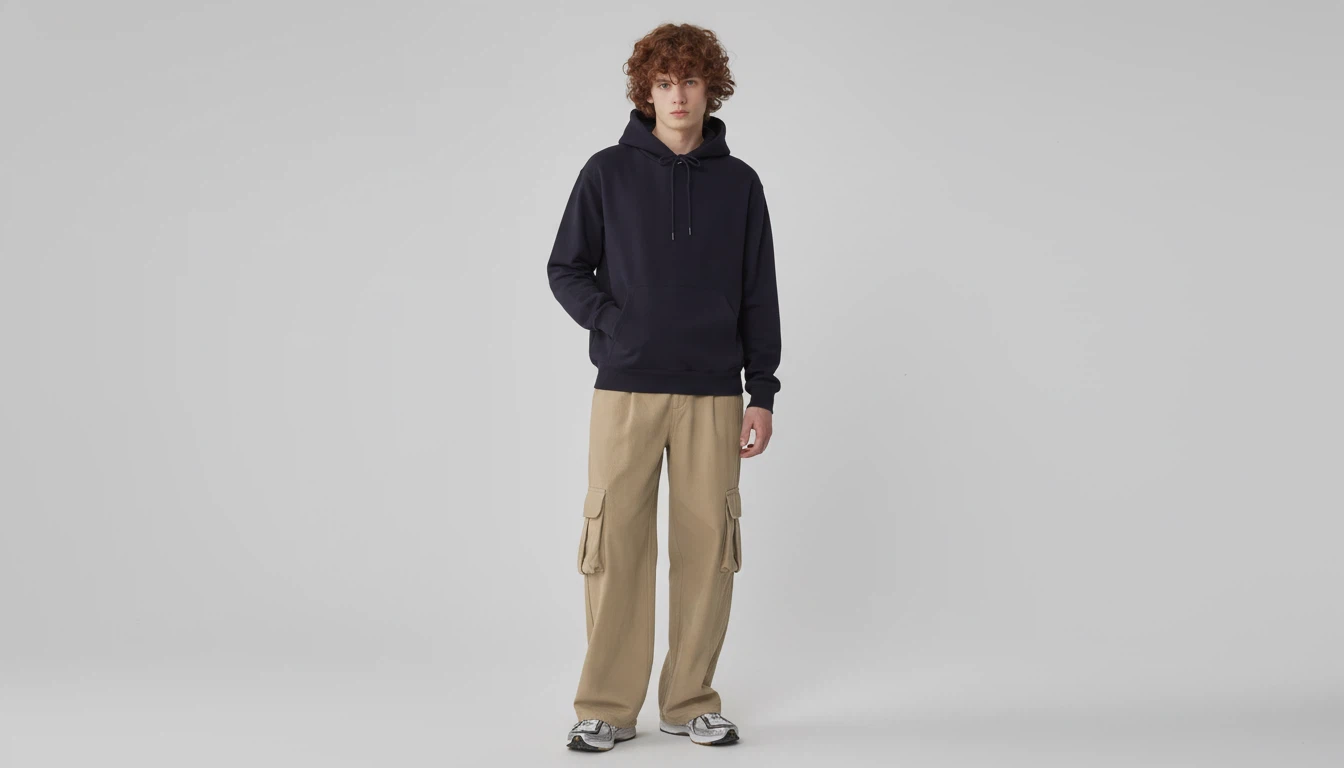
How to Create White Studio Fitting Shots Without Shooting
The process of renting a studio, hiring a model, and conducting shooting and editing for clothing fitting shots requires a lot of cost and time.
By using Quel Suite, you can complete clothing fitting shots with a white studio background within a single tool without going through these processes.
Fitting shots can be created with just Quel Suite, without studio rental, model hiring, shooting, and editing.
This guide covers a fitting shot production flow that can be directly applied to actual shopping malls and brand operations, not just simple image generation.
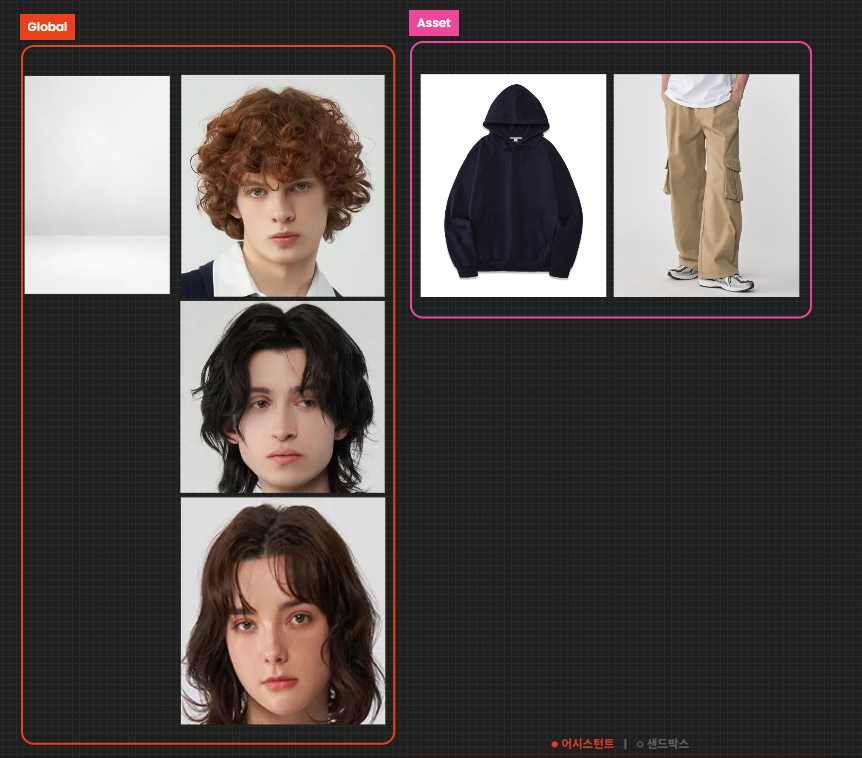
This is the reference image to be used today. Depending on your desired workflow, the model reference applied to Global can also be applied to Asset.
Case 1. How to Create Consistent Fitting Shots with Accurate Reference Settings
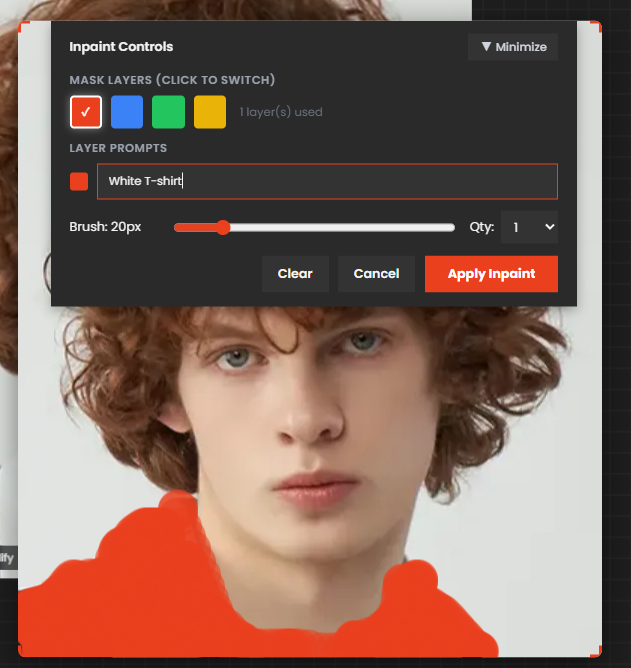
Quel Suite tries to read the elements of the input image as accurately as possible. Therefore, before applying the reference to the workflow, it is recommended to modify unnecessary elements in the desired direction using the Image Modify - Inpaint function.
Since the collar of the shirt was included in the existing reference image, this part was brushed and processed into White T-shirts.
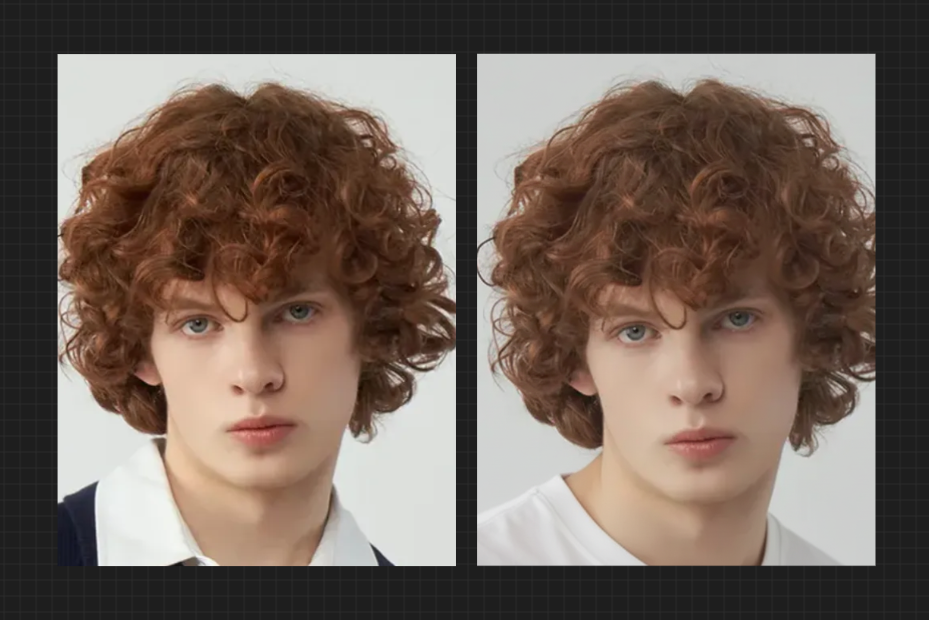
You can see that the collar of the shirt has been very naturally improved to the neckline of the T-shirt.
The processed image can be copied by right-clicking and pasted into the desired node or downloaded from the archive and input via drag and drop.
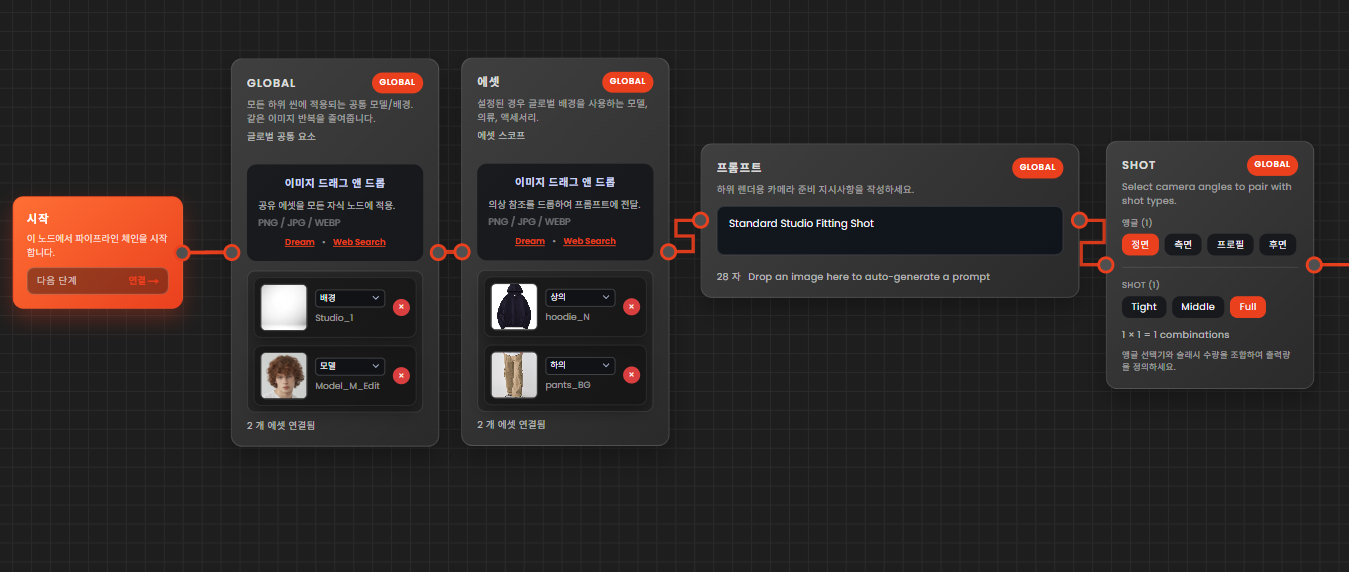
The structure and prompt of the node are very simple. You just need to input the reference into each node and make simple settings.
Prompt: Standard Studio Fitting Shot
The same prompt was used for all workflows explained today.
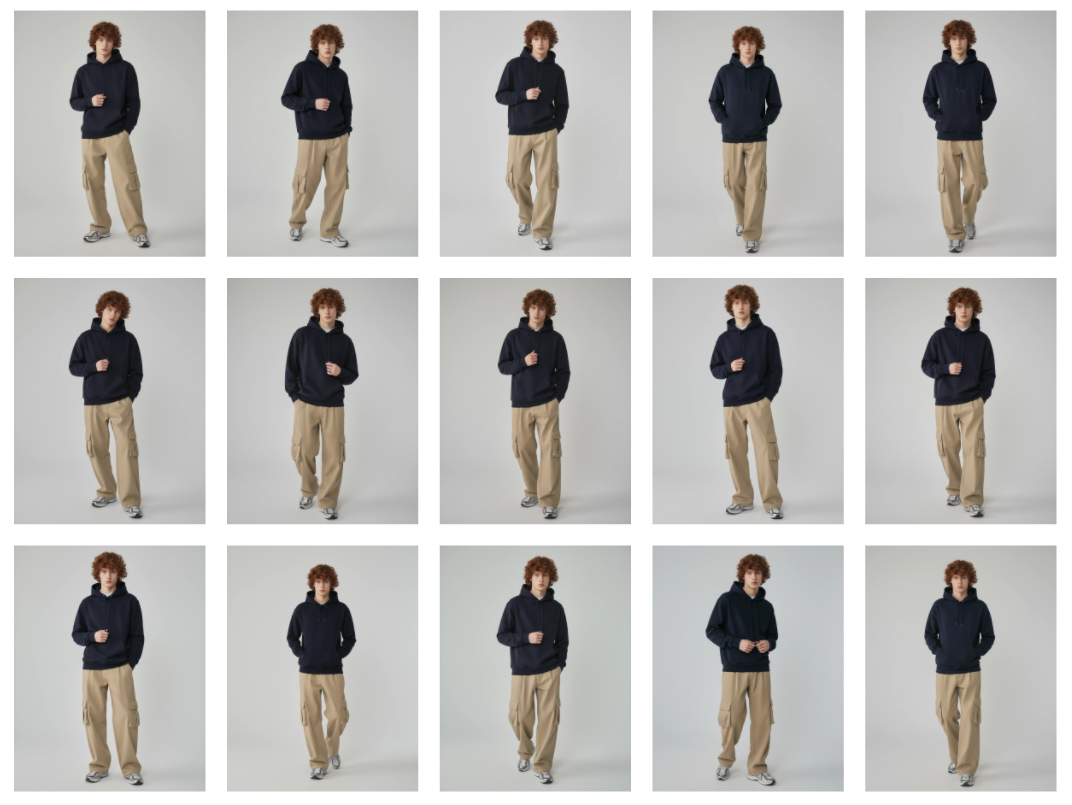
Natural fitting shots sharing a consistent tone and reference, as if taken through multiple directions in a studio, were generated.
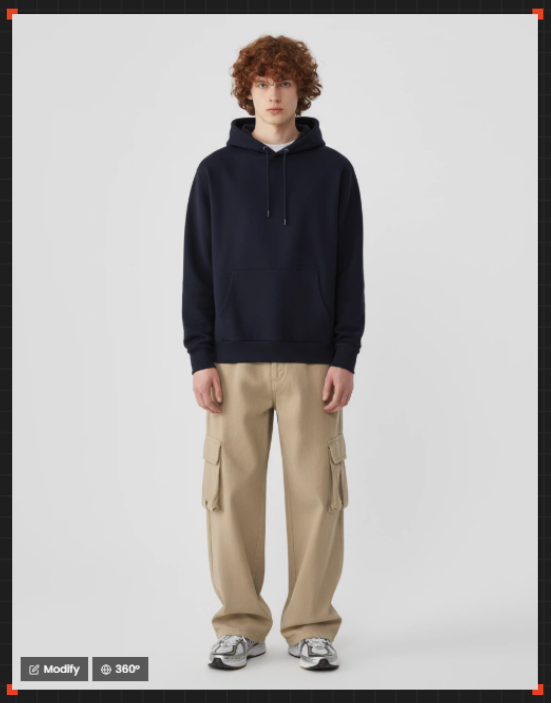
You can rotate the completed fitting shots 360 degrees to obtain results from various angles. Drag and drop the rendered results into the Creative Studio and press the 360 button at the bottom left.

You can see that fitting shots with consistent model, environment, fit, and detail are rendered from multiple angles.
Case 2. How to Replace Only the Clothing While Maintaining the Environment and Model
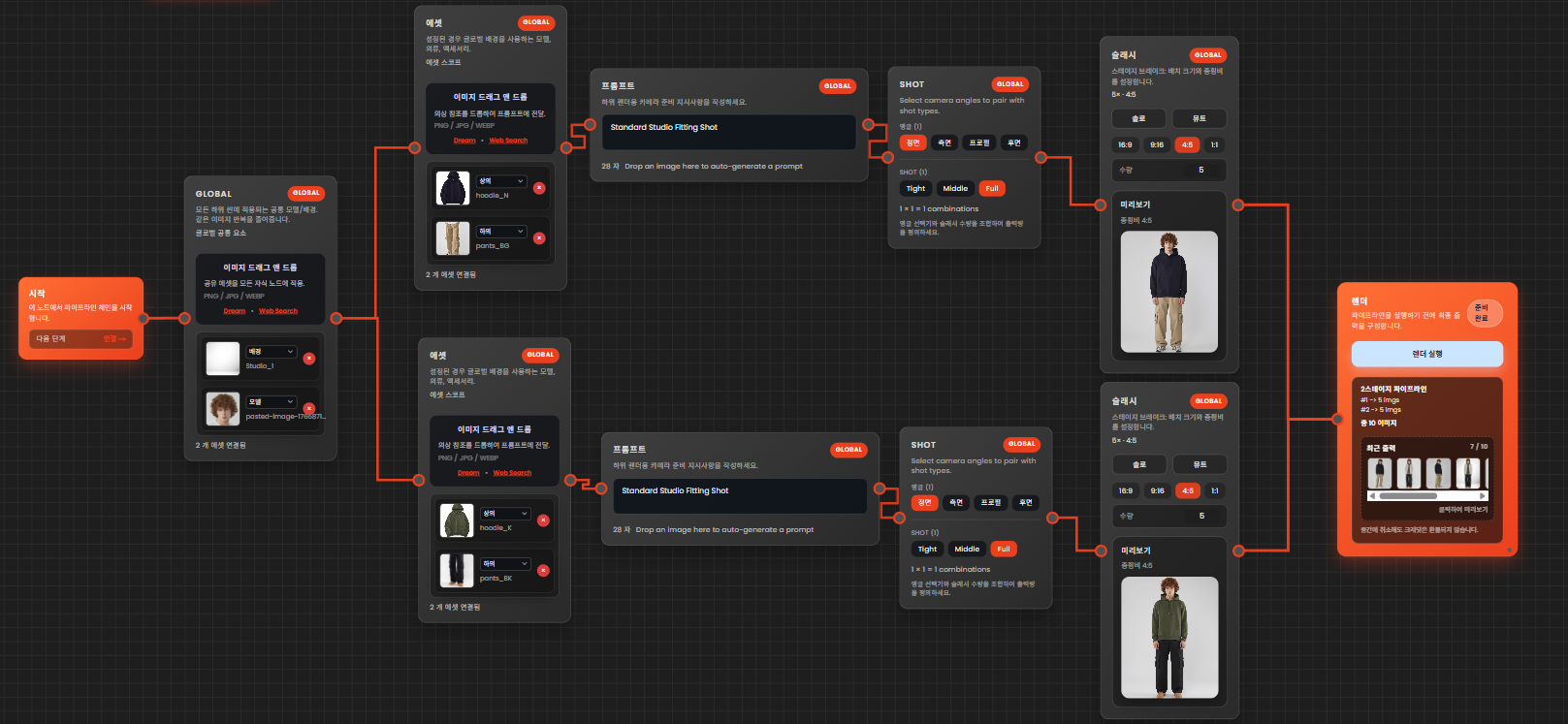
Copy the nodes excluding the Global and Render nodes from the previously set node and connect them to the Global and Render nodes. This chain can be connected to multiple chains repeatedly without any issues.
Since we only want to replace the clothing, we only replaced the clothing reference of the asset while maintaining the prompt and shot, slash.
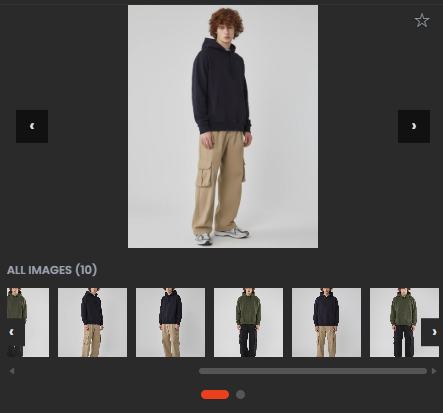
As a result of rendering, you can see that consistent fitting shots are rendered with only the clothing changed. Through this process, you can generate numerous fitting shots by replacing only the clothing reference with a single standard setting.
Case 3. How to Create Fitting Shots of Various Models While Maintaining the Environment and Clothing
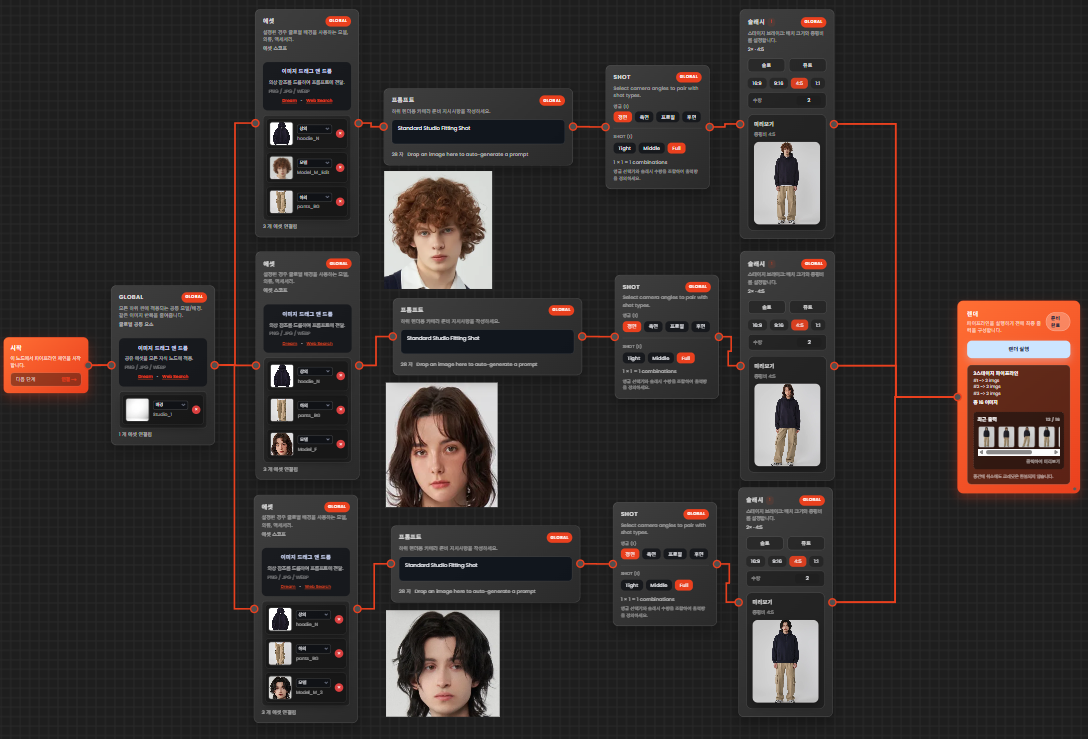
If you understand the workflow explained earlier, you will know that you can set various variables to generate consistent environment fitting shots by simply changing the asset image and connecting nodes.
This time, we will reproduce the same clothing in one studio environment by only changing the gender and model characteristics.
All conditions except for the reference of the model's face were set the same.
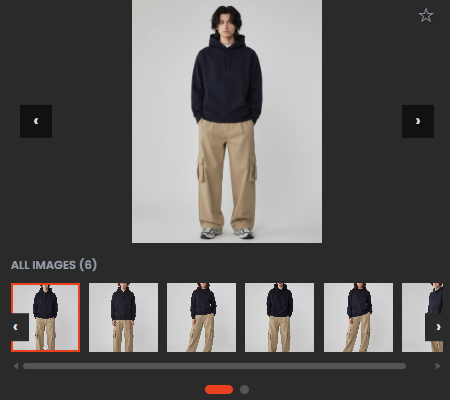
With a single rendering, fitting shots of multiple models sharing the same environment and clothing were generated.
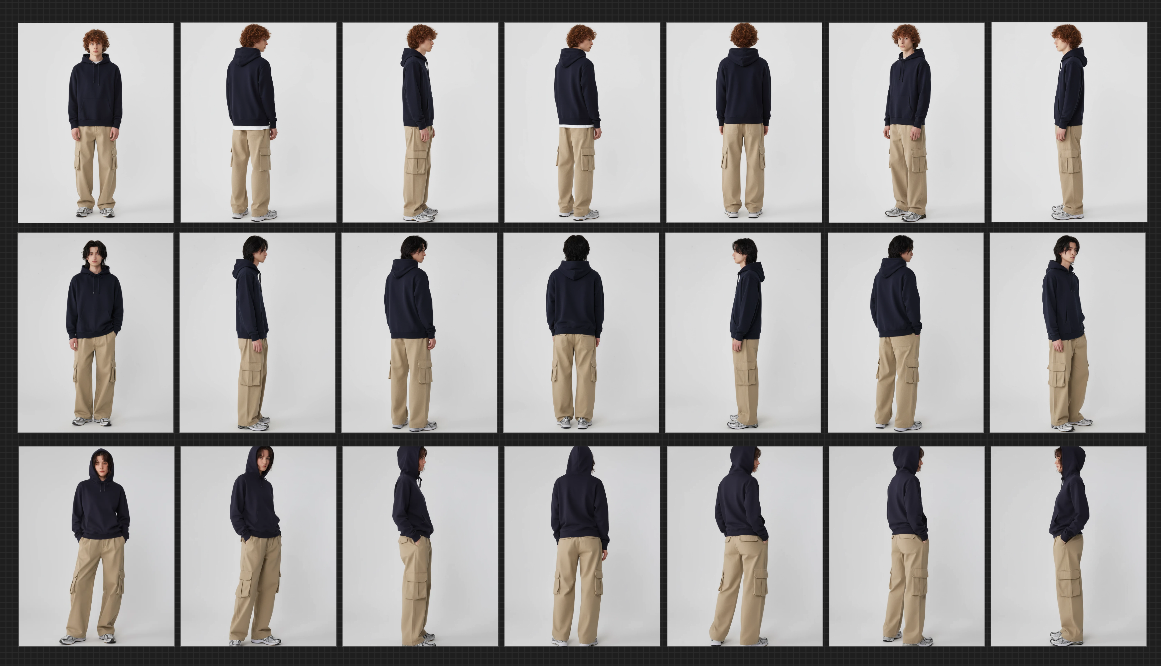
After selecting the most suitable cut from the render preview or archive, input the image into Creative Studio.
The image input method is the same as in the previous step. You can drag and drop directly from the render preview or download the image from the archive and input it.
Once the image is input into Creative Studio, click the 360 button to generate fitting shots from various angles, allowing you to naturally check the front, side, and back of the clothing.
As you can see, Quel Suite allows you to set various variables per node, confirming that quick modifications and mass production are possible for fit, composition, and mood.