Guide to Creating Detailed Clothing Shots Remotely Using QuelSuite
Introducing a method to easily generate detailed clothing images that look like they were shot in a real studio using QuelSuite, without the need for a physical studio setup or detailed photography.
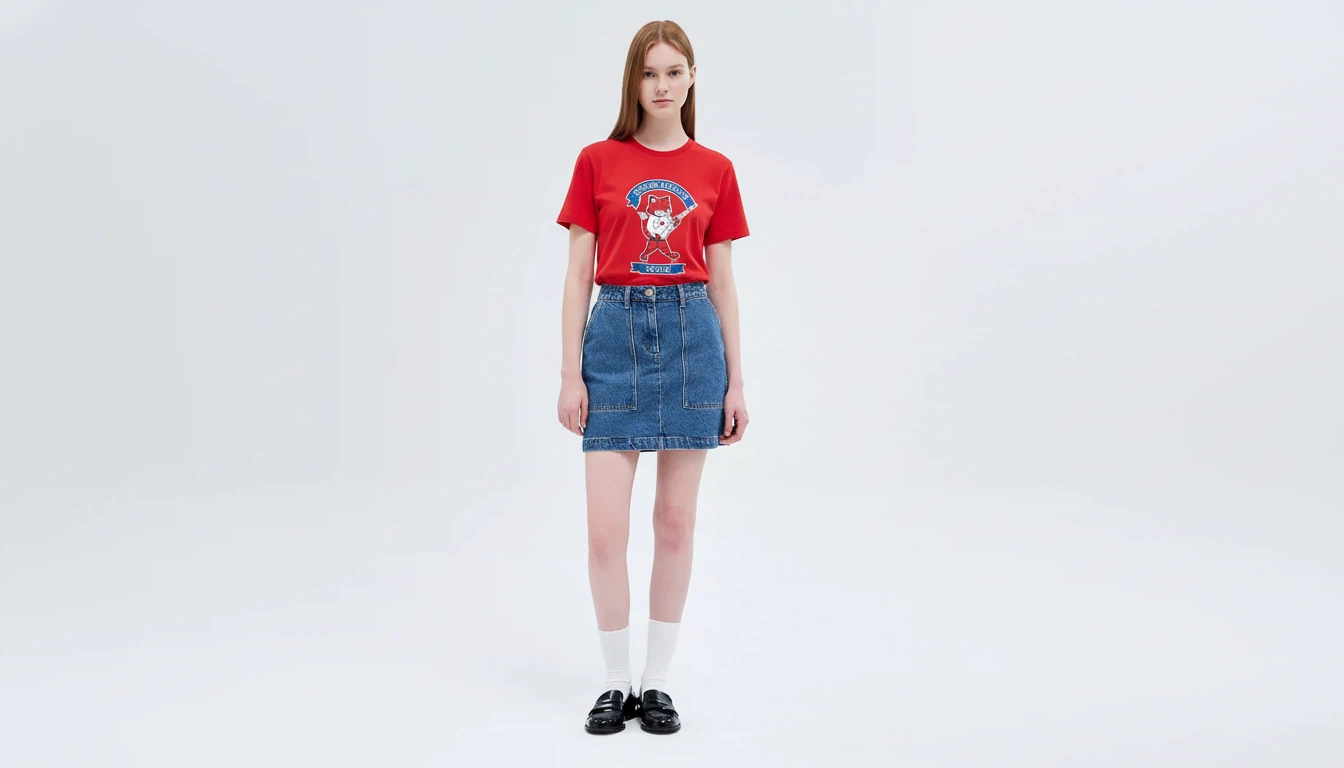
This is a workflow for generating detailed clothing images by connecting nodes without physical studio photography.
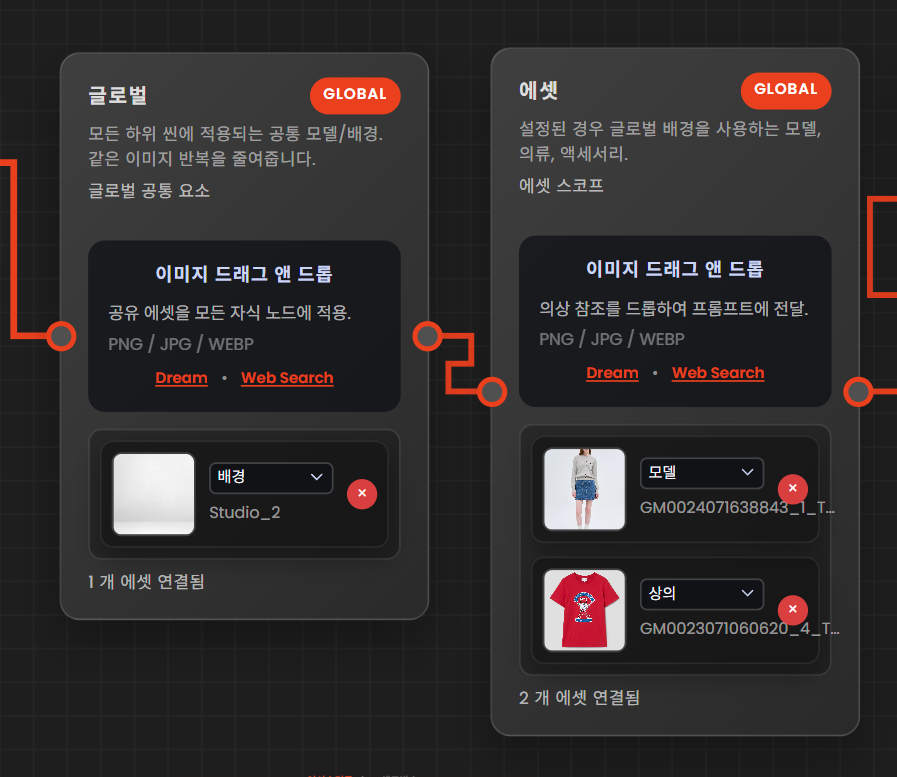
1. Insert Studio Image into Global Node
- Upload the studio background image by 'drag and drop' into the global node.
2. Specify Model and Clothing
- Upload images of the clothing and model separately.
3. Direct the Scene
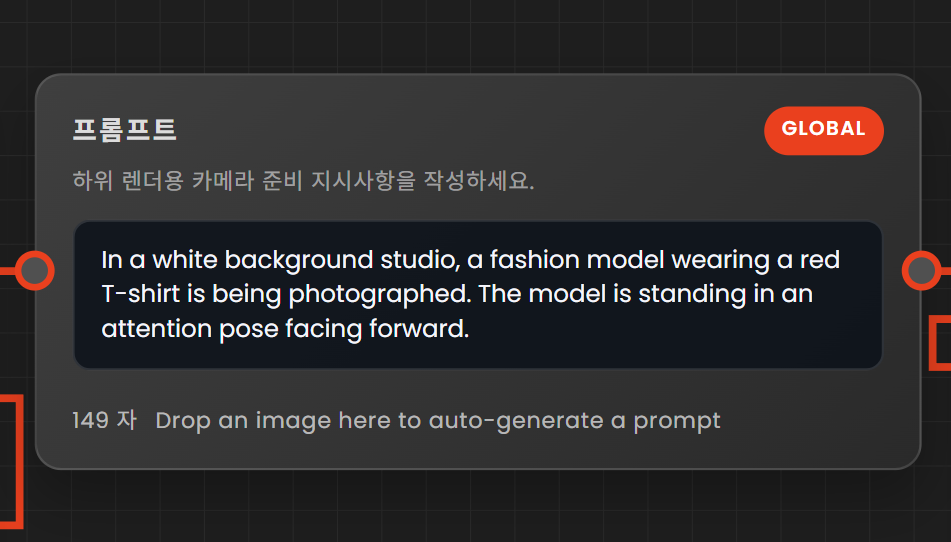
- Write the specific shooting scenario in the prompt.
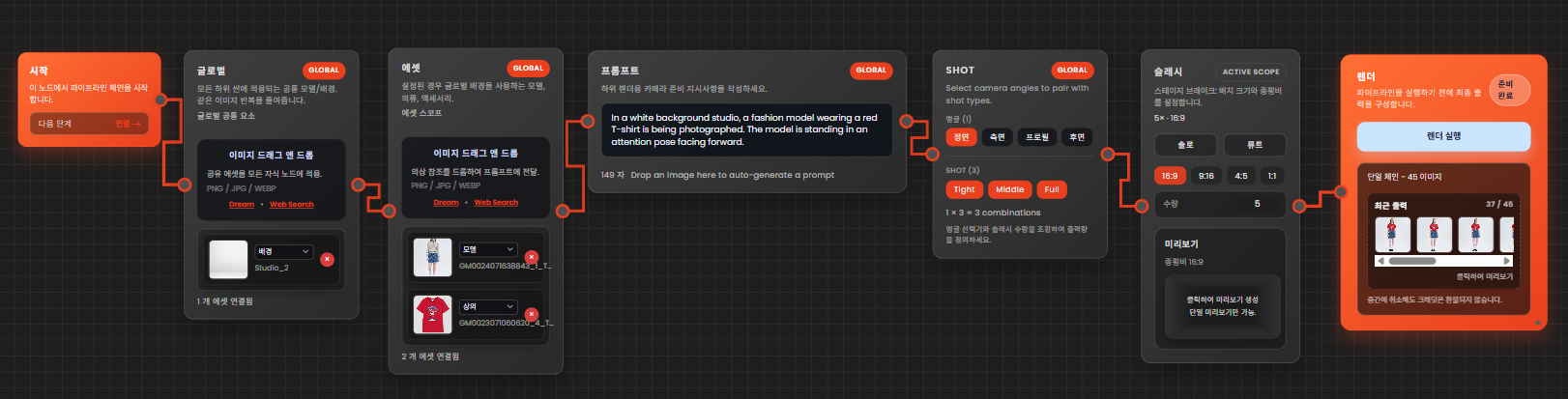
Example) A fashion model wearing a red T-shirt poses while looking straight ahead in a white studio background.
4. Camera Angle and Shot Composition
- Specify the direction and size of the shot to create various composition drafts.
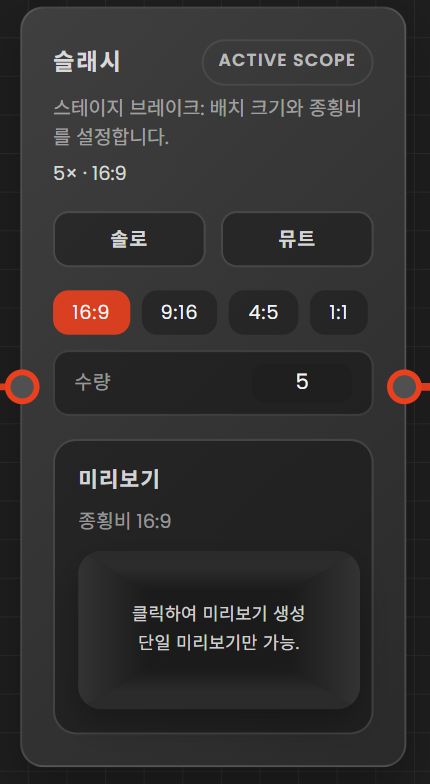
5. Output Settings and Rendering
- Select the aspect ratio (16:9, 9:16, 4:5, 1:1, etc.) according to the purpose, and specify the quantity to be generated at once.
6. Image Selection and 360-Degree Rotation Image Creation
- Select the front image from the render results and drag and drop it into Creative Studio.
- Once the image is entered into Creative Studio, click the 360 button located at the bottom left of the image.
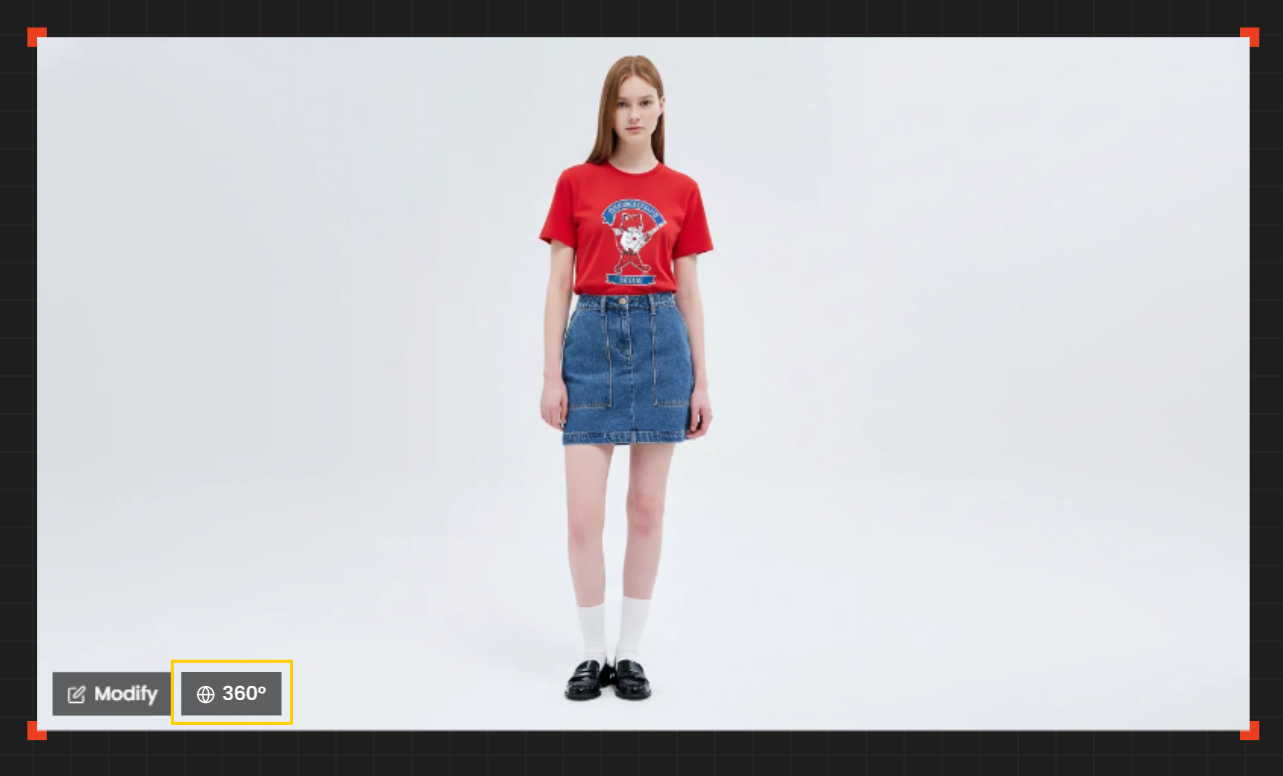
- This automatically generates an image of the model and clothing rotating 360 degrees based on the selected cut.
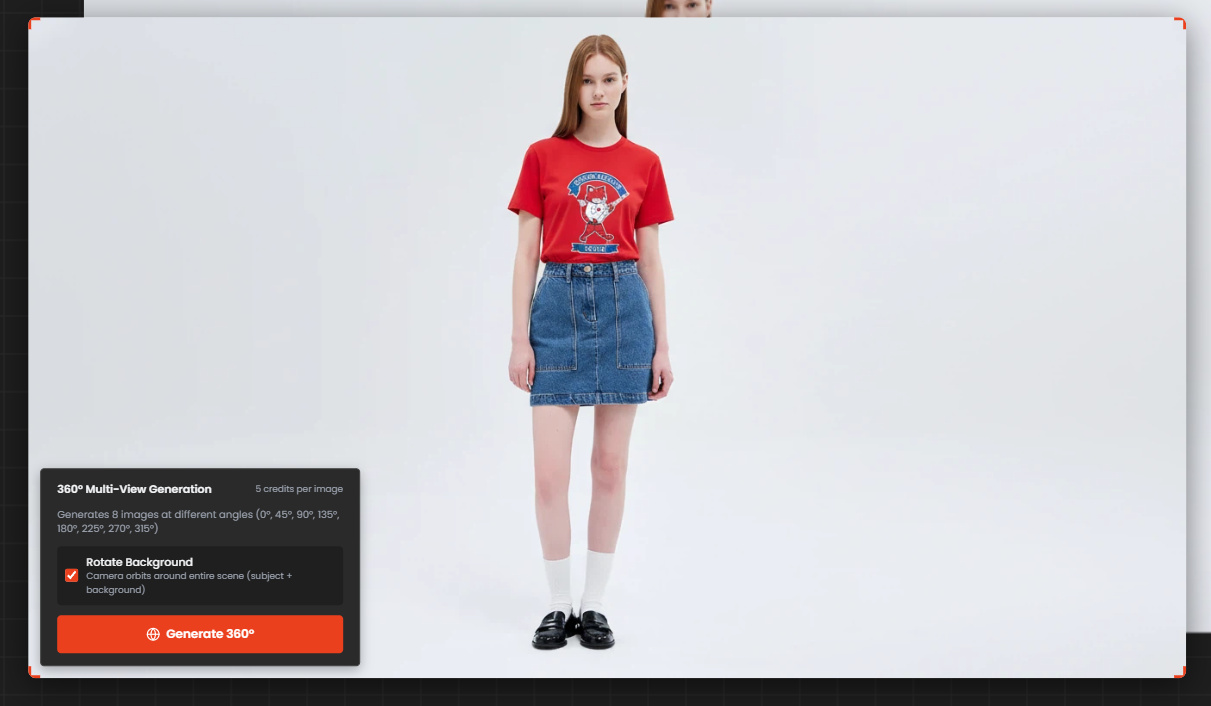
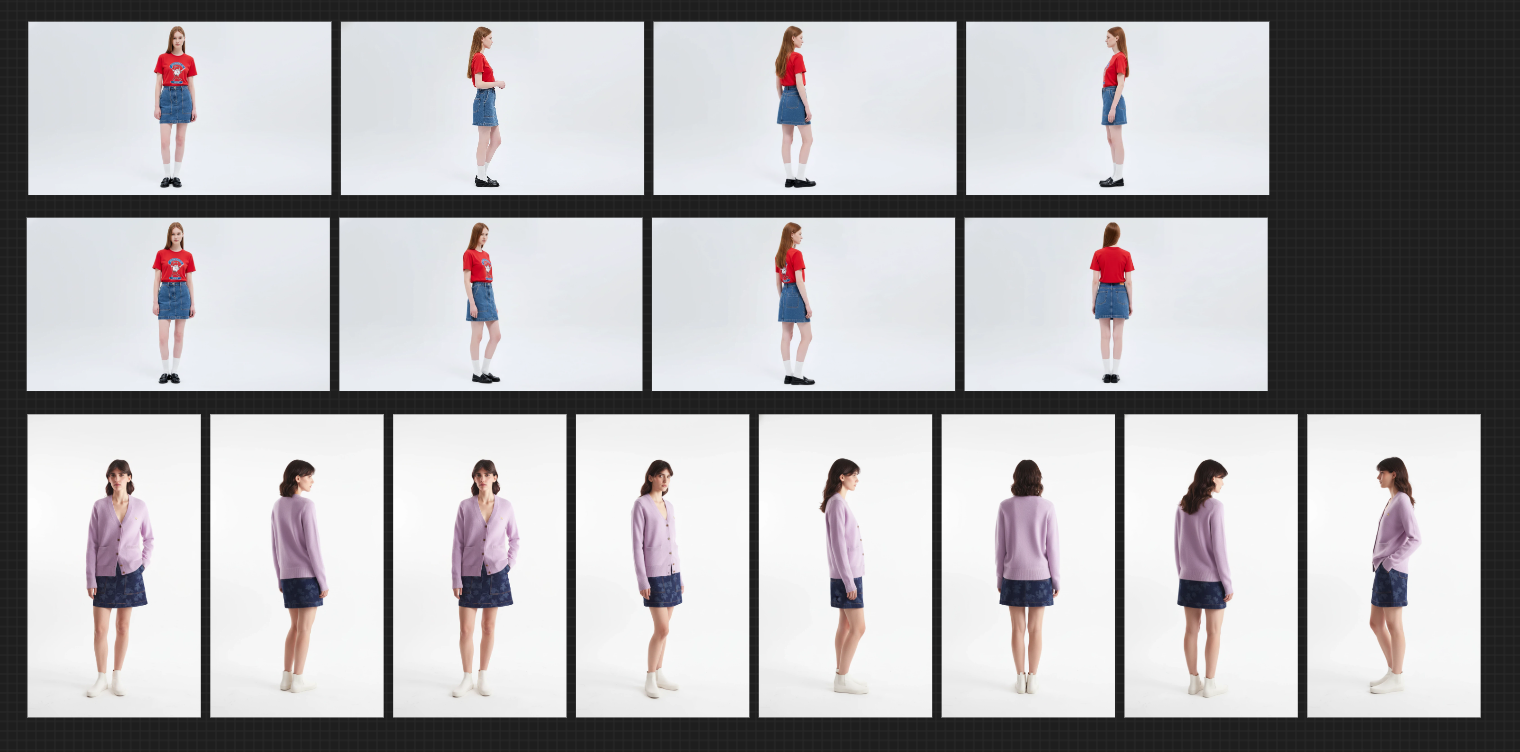
This feature naturally showcases the front, back, and sides of the look, enabling a three-dimensional understanding of the product beyond simple lookbook shots.